
What is important before you start?
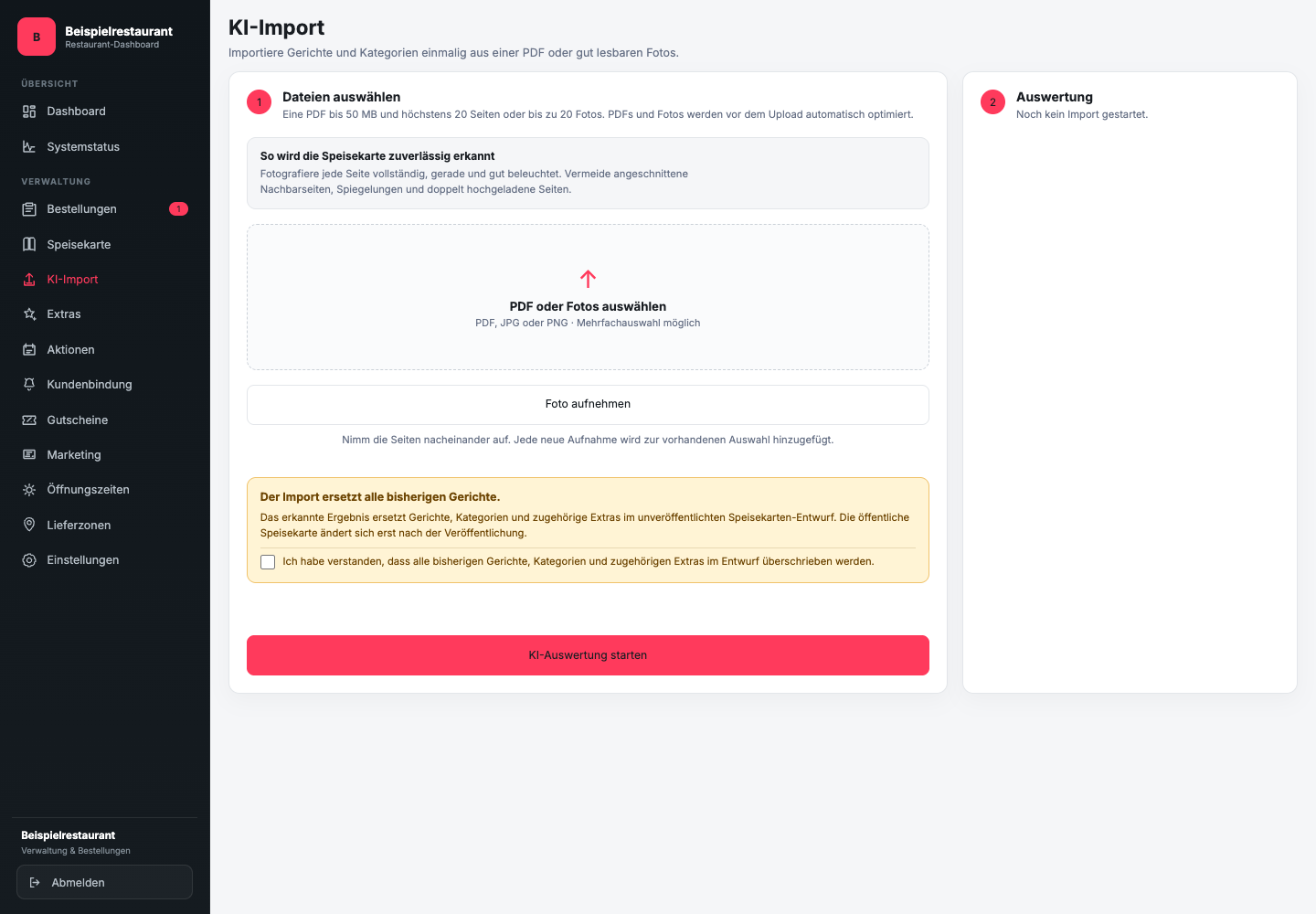
The current import is accepted a PDF up to 50 MB with a maximum of 20 pages or up to 20 photos. About Select PDF or photos you load existing files. Take photo allows new recordings to be added to the selection on suitable devices.
When applied, the import replaces the previous dishes, categories and associated extras in the unpublished draft menu. Therefore, import the entire menu you want, not just a single new dish. The public menu will remain unchanged until published.
Check the page selection for completeness and duplicate recordings before you Start AI evaluation use.
Which files can you use?
The GastroSprint AI menu import supports JPG, PNG and PDF. If possible, use the current original file or a straight, sharp photo without cropped edges or strong reflections.
The source file should clearly show product names and prices. Handwritten additions, superimposed graphics or very small footnotes increase the need for checking.
How do you start the import?
- In the restaurant dashboard, open the section AI import.
- Select the current menu file.
- Check file, version and full page selection. Only then confirm the checkbox to replace the previous draft.
- Click on Start AI evaluation and wait until Check import is ready.
- Open the preview and process all visible warnings.
The import can recognize categories, products, prices, extras as well as explicitly stated allergens and additives. Content that is not clearly legible must be checked or supplemented by you.
What happens to the recognized data?
With Apply and open menu The recognized content is incorporated into the draft and replaces its previous menu. They do not automatically change the public menu. You can control names, prices, attributions and warnings before accepting or publishing data.
The AI import is a recording aid. It does not confirm prices, allergens, additives or the completeness of the menu for your restaurant.
Don't accidentally use an old PDF from a previous seasonal or lunch special for a new version.