
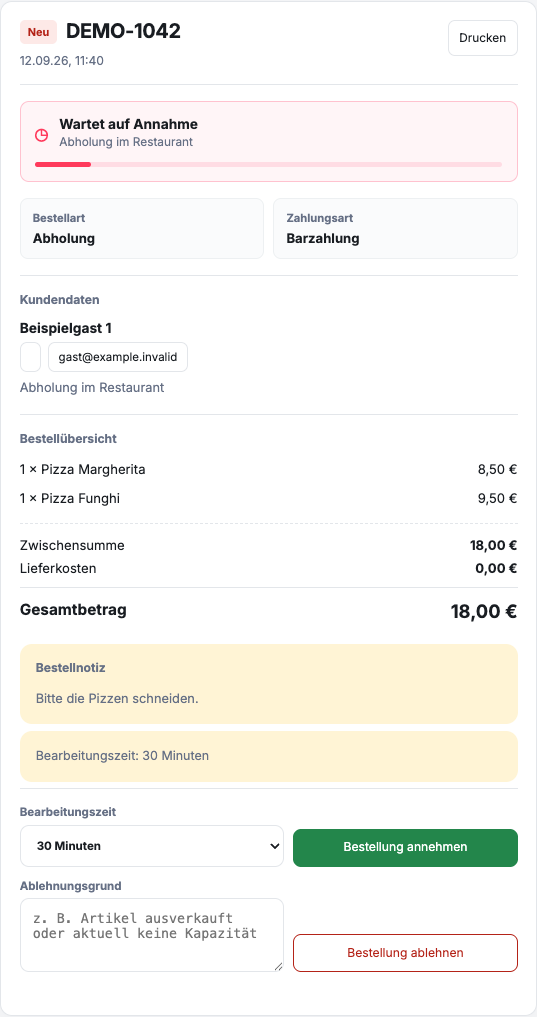
Where do you take the order?
- Open Orders in the sidebar and select the order in the list.
- Check the detailed view on the right; on narrow screens it is below the list.
- Scroll to Processing time. Choose 15, 20, 25, 30, 40, 45 or 60 minutes to suit your workload.
- Click on Accept order and check that the status is too Accepted changes.
The default 30 minutes is a suggestion. Check them for each order. In the case of a reserved order, the desired later date is also part of the check.
What should you check before accepting?
Open the new order and first check whether your restaurant can fulfill it under the current conditions. Pay particular attention to the order type, desired time, delivery address, dishes, extras and comments from the guest.
Also check:
- Are all the products ordered available?
- Can the kitchen prepare the order in the combination shown?
- Is there enough time planned for preparation and travel for a delivery?
- When picking up, is the distribution point occupied at the selected time?
How do you determine the processing time?
When accepting, choose a time that your team can keep even with the current workload. Delivery time includes minutes in the kitchen as well as packaging, handover, travel and access to the delivery address.
Setting a time that is too short creates questions and unnecessary pressure. If multiple large orders come in at the same time, adjust the estimate based on the actual order in the kitchen.
What happens after acceptance?
After acceptance, the decision is recorded in the ordering process. GastroSprint informs the guest of acceptance via email. Then continue the order with the intended status so that the team can see whether it is still being prepared, is ready or has already been completed.
If the process changes significantly, clarify the situation directly with the guest. An internal status does not replace a necessary personal query.