
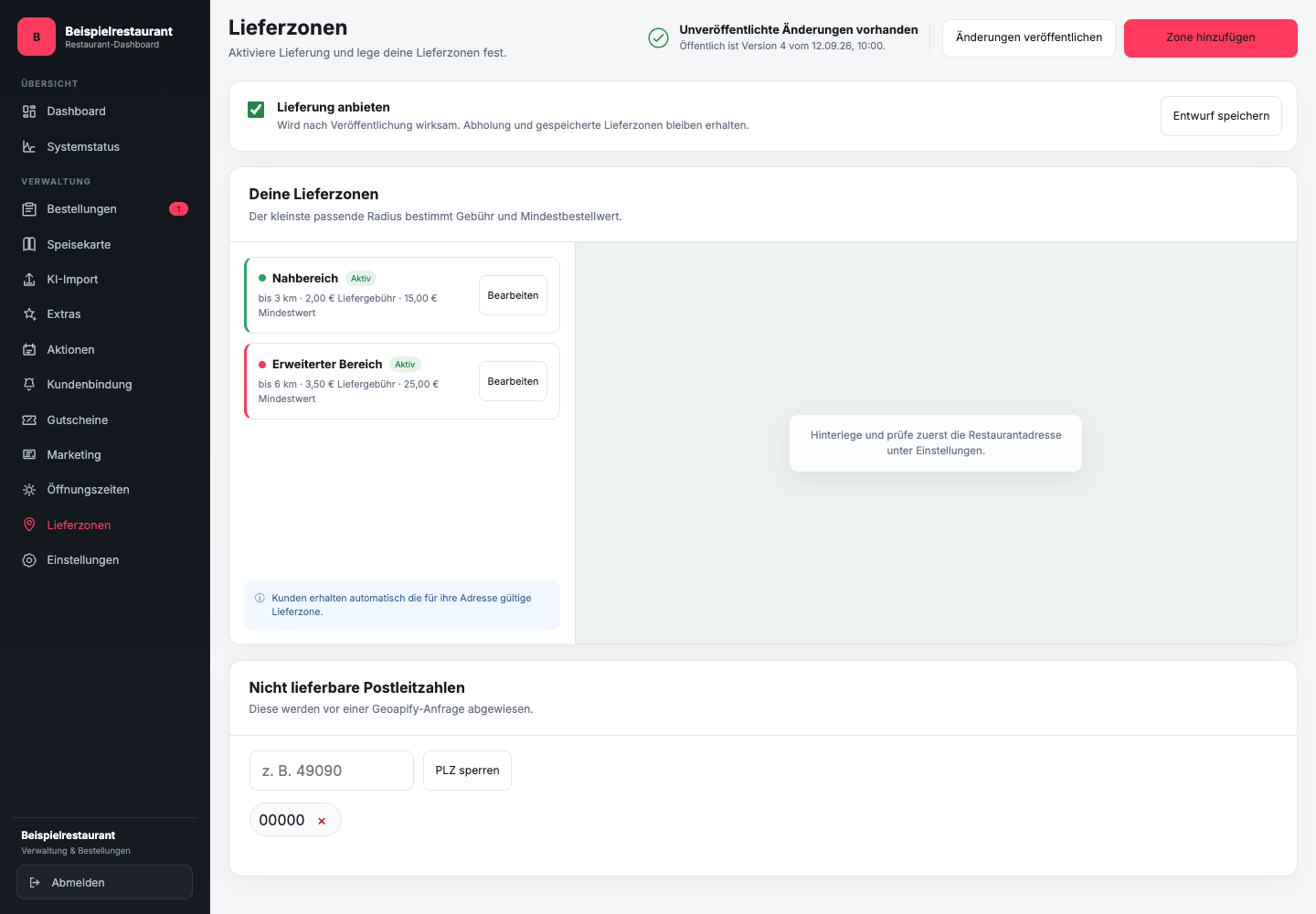
Where do you set delivery and zip code blocks?
Open Delivery zones. The switch is at the top Offer delivery with Save draft. Below you will find Your delivery zones. Use Add zone or Edit to an existing zone.
Under Non-deliverable postcodes enter a complete zip code and click on Block zip code. The cross next to a saved zip code cancels the lock again. Then publish the checked changes.
If the menu is missing, first enter and check the restaurant address below Settings. The blank menu in the screenshot shows this condition; “00000” is solely a placeholder in the sample data.
How do you determine a realistic delivery area?
GastroSprint supports concentric delivery zones by radius. Start with the area that your restaurant can reliably serve even at normal capacity. The pure distance is only part of the actual travel time.
Take into account traffic, finding parking, difficult-to-access buildings and the journey back to the restaurant. A large radius doesn't help if delivery times are regularly exceeded.
When do you exclude a zip code?
An excluded postcode makes sense if an area is within the radius but is not intended to be delivered operationally. Reasons can include difficult traffic routes, natural boundaries or a permanently disproportionate travel time.
Proceed in a controlled manner:
- Check the existing zone and its radius.
- Completely enter the zip code to be excluded.
- Check whether neighboring, still desired areas remain untouched.
- Save the change and only publish it after the review.
- Test one address within and one address outside the desired range.
What do you check for a rejected address?
First check the spelling, house number and zip code. If the address is actually outside a zone or in an exclusion, the rejection is intentional. If it is in the desired delivery area, check the zone boundary and excluded postal codes.
Do not change delivery rules during a single guest request without considering the consequences for all subsequent orders.