
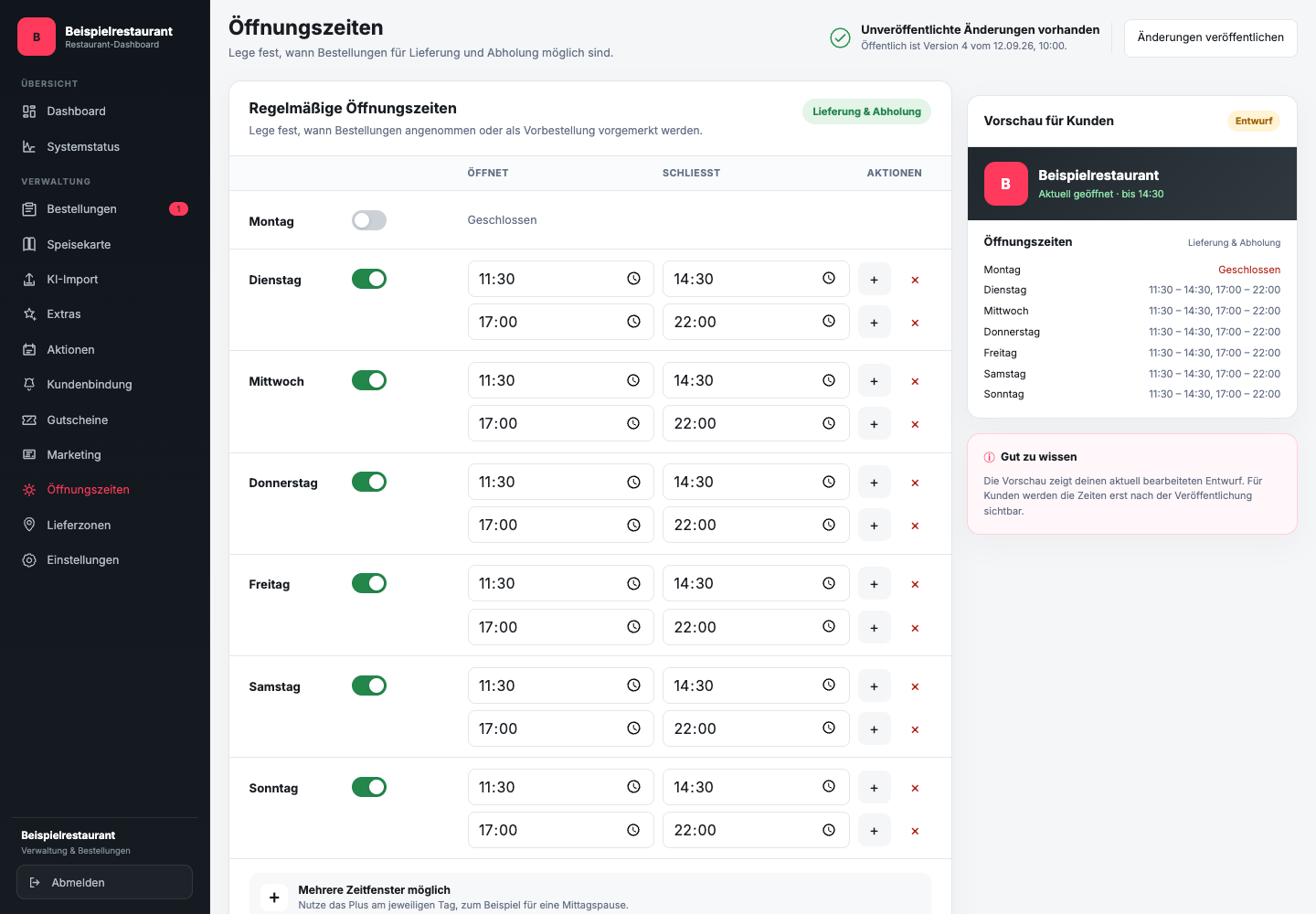
How do you edit the times of the week?
- Open Opening hours in the sidebar.
- Activate the open days of the week and carry Opens and Closes a.
- Use the plus for another period of time on the same day, for example after a lunch break. Remove unnecessary periods with the cross.
- Check right Preview for customers and the time zone displayed.
- Click on Save opening times and publish the checked draft via Publish changes.
The preview shows the draft. Pre-orders are based on available order times; the weekly times are not a separate counter for each individual pre-order order.
Which times should you depict?
The times stored must show when your restaurant can reliably process orders for delivery or pickup. Kitchen opening, order acceptance and regular restaurant opening may differ.
Plan enough time before closing time if a late order cannot otherwise be prepared or delivered. Inform your team about different times so that the online ordering website and the real process match.
How do pre-orders work?
GastroSprint supports reserved orders outside of the current opening hours. The guest selects a later available time. In the restaurant, the order must be recognized as a pre-order and scheduled for this time.
Check with every pre-order:
- Date and desired time
- Delivery or collection
- required preparation time
- available products at the selected time
- Responsibility in the relevant shift
Don't treat a pre-order like an order to be fulfilled immediately. At the same time, she must not be overlooked when changing shifts.
What do you check after a time change?
Open the public online ordering website outside and within the new times. Check whether the guest can clearly see whether an immediate order, a pre-order or no order is currently possible.
Check special days and short-term closures separately. A permanently changed time of week is not always the right solution for a single holiday or a one-off break in operations.